Battle-Ready Kubernetes Deployments: Zero Downtime in Production
A practical SRE guide to production-grade Kubernetes deployments — covering rolling updates, probes, graceful shutdown, resource limits, and HPAs with real Node.js examples.
Most Kubernetes tutorials show you how to get something running. This one is about keeping it running — through deployments, scaling events, and traffic spikes — without dropping requests.
By the end you’ll have a deployment config that handles rolling updates, sudden load spikes, and graceful shutdowns without your users noticing.
The Problem With Default Deployments
A default kubectl create deployment leaves out almost everything you need for production:
- No readiness probe → traffic hits pods that aren’t ready yet
- No graceful shutdown → in-flight requests get dropped on deploy
- No resource limits → one noisy pod starves the whole node
- No HPA → traffic spike takes everything down
Let’s fix each one.
1. Rolling Update Strategy
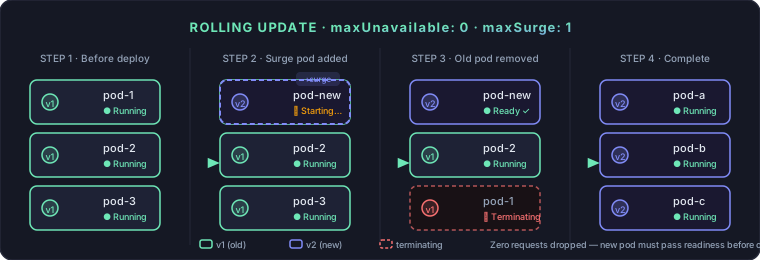
The first thing to tune is how Kubernetes replaces pods during a deploy.
spec:
  strategy:
    type: RollingUpdate
    rollingUpdate:
      maxUnavailable: 0
      maxSurge: 1
maxUnavailable: 0 — Kubernetes will never terminate an old pod until a new one has passed its readiness probe. This is the most important setting for zero-downtime deploys.
maxSurge: 1 — Only one extra pod spins up at a time. Keeps resource usage predictable.
With a small replica count (2–3 pods), the default 25% values round down unpredictably. Explicit values are always safer.
2. Probes: Startup, Readiness, Liveness
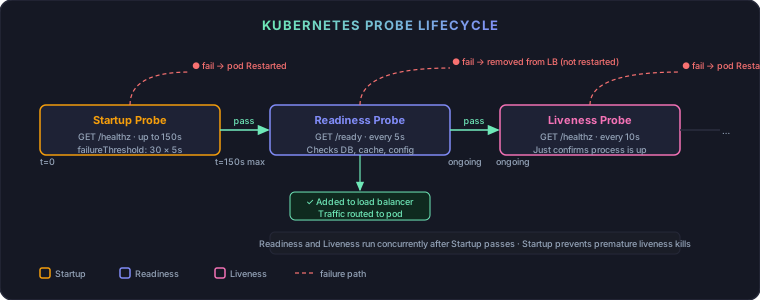
Three probes, three different jobs. Don’t confuse them.
Startup Probe
Gives slow-starting apps time to boot before health checking begins. Without this, your liveness probe kills the pod before it even finishes starting.
startupProbe:
  httpGet:
    path: /healthz
    port: 3000
  failureThreshold: 30
  periodSeconds: 5
This gives the app up to 30 × 5 = 150s to start. Once it passes once, the liveness probe takes over.
Readiness Probe
Controls whether the pod receives traffic. If this fails, the pod is removed from the load balancer — but not restarted.
readinessProbe:
  httpGet:
    path: /ready
    port: 3000
  initialDelaySeconds: 5
  periodSeconds: 5
  failureThreshold: 3
Your /ready endpoint should check real dependencies — DB connection, cache, config loaded. A /ready that just returns 200 is useless.
// Node.js — real readiness check
app.get('/ready', async (req, res) => {
  try {
    await db.query('SELECT 1');
    res.sendStatus(200);
  } catch {
    res.sendStatus(503);
  }
});
Liveness Probe
Checks if the app is alive. If this fails repeatedly, the pod is restarted. Keep it lightweight — just confirm the process is responsive, not your whole dependency chain.
livenessProbe:
  httpGet:
    path: /healthz
    port: 3000
  initialDelaySeconds: 15
  periodSeconds: 10
  failureThreshold: 3
// Liveness — just confirm the process is up
app.get('/healthz', (req, res) => res.sendStatus(200));
3. Graceful Shutdown
This is where most teams get burned.
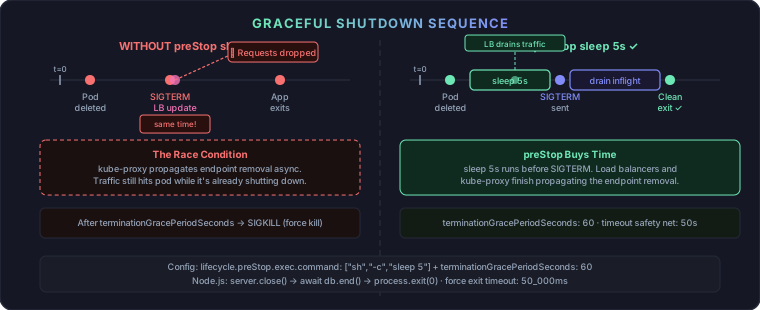 The sequence when Kubernetes deletes a pod looks deceptively simple:
- Pod marked for deletion
- Pod removed from service endpoints
- Pod receives
SIGTERM - After
terminationGracePeriodSeconds, pod receivesSIGKILL
The catch: steps 2 and 3 happen at the same time, not in order. kube-proxy and external load balancers may not have stopped routing traffic to the pod before it receives SIGTERM and starts shutting down. Requests that arrive in that window get dropped.
The fix is a preStop sleep — a short pause before shutdown that gives load balancers time to stop sending traffic:
spec:
  terminationGracePeriodSeconds: 60
  containers:
    - name: app
      lifecycle:
        preStop:
          exec:
            command: ["sh", "-c", "sleep 5"]
The sleep 5 runs before SIGTERM is sent. This gives kube-proxy and any load balancers a few seconds to stop sending new requests to the pod before it starts shutting down.
Node.js Graceful Shutdown
Your app also needs to handle SIGTERM properly — finish in-flight requests, close the DB pool, then exit cleanly.
import express from 'express';
import { createPool } from './db.js';

const app = express();
const db = createPool();

app.get('/healthz', (req, res) => res.sendStatus(200));
app.get('/ready', async (req, res) => {
  try {
    await db.query('SELECT 1');
    res.sendStatus(200);
  } catch {
    res.sendStatus(503);
  }
});

app.get('/', (req, res) => res.send('Hello'));

const server = app.listen(3000, () => {
  console.log('Server listening on port 3000');
});

// Graceful shutdown
const shutdown = async (signal) => {
  console.log(`${signal} received — shutting down gracefully`);

  // Stop accepting new connections
  server.close(async () => {
    console.log('HTTP server closed');

    // Close DB pool
    await db.end();
    console.log('DB pool closed');

    process.exit(0);
  });

  // Force exit if drain takes too long
  setTimeout(() => {
    console.error('Forced shutdown after timeout');
    process.exit(1);
  }, 50_000); // Stay under terminationGracePeriodSeconds (60s)
};

process.on('SIGTERM', () => shutdown('SIGTERM'));
process.on('SIGINT', () => shutdown('SIGINT'));
Key points:
server.close()stops accepting new connections but lets existing ones finish- DB pool closes only after HTTP server drains
- The forced timeout is a safety net — always set it below
terminationGracePeriodSeconds
4. Resource Requests and Limits
Without resource requests and limits, one misbehaving pod can starve every other pod on the node.
resources:
  requests:
    cpu: "250m"
    memory: "256Mi"
  limits:
    cpu: "500m"
    memory: "512Mi"
Requests — what Kubernetes uses for scheduling. The pod is guaranteed this much.
Limits — the hard cap. Exceed CPU limit → throttled. Exceed memory limit → OOMKilled.
How to determine the right values
Don’t guess. Profile your app first.
Step 1 — Run with no limits, observe actual usage:
kubectl top pods -n your-namespace --containers
Run this under realistic load (use a load testing tool like k6 or hey). Watch peak CPU and memory.
Step 2 — Set requests at ~your average usage:
If your app idles at 50m CPU and 100Mi memory, set requests there. This is what Kubernetes uses to bin-pack pods onto nodes.
Step 3 — Set limits at ~2–3× peak:
This gives headroom for traffic spikes without letting a runaway process eat the node. For memory, be careful — if your app genuinely needs 400Mi at peak, don’t set a 256Mi limit or you’ll get OOMKilled on every spike.
Step 4 — Watch for CPU throttling:
kubectl describe pod <pod-name> | grep -A5 "Limits\|Requests"
If you’re consistently hitting CPU limits, either raise the limit or optimize the app. Throttled pods respond slowly even when they look “healthy”.
Rule of thumb for a typical Node.js API:
| CPU | Memory | |
|---|---|---|
| Requests | 100m–250m | 128Mi–256Mi |
| Limits | 500m–1000m | 256Mi–512Mi |
5. Horizontal Pod Autoscaler (HPA)
HPAs automatically scale your deployment up when load increases and back down when it drops. Without one, a traffic spike that exceeds your fixed replica count will overwhelm your pods.
apiVersion: autoscaling/v2
kind: HorizontalPodAutoscaler
metadata:
  name: my-app-hpa
spec:
  scaleTargetRef:
    apiVersion: apps/v1
    kind: Deployment
    name: my-app
  minReplicas: 2
  maxReplicas: 10
  metrics:
    - type: Resource
      resource:
        name: cpu
        target:
          type: Utilization
          averageUtilization: 60
    - type: Resource
      resource:
        name: memory
        target:
          type: Utilization
          averageUtilization: 70
minReplicas: 2 — Never go below 2. One pod means a single point of failure.
averageUtilization: 60 for CPU — HPA scales up when average CPU across all pods exceeds 60% of their request. This gives you headroom before things get slow.
Prerequisites: Metrics Server must be installed in your cluster. On most managed K8s (EKS, GKE, DOKS) it’s included. Verify with:
kubectl top nodes
If that works, Metrics Server is running.
HPA + Rolling Updates
When a deploy happens while HPA is scaling, the two can interfere. Set a stabilizationWindowSeconds to prevent flapping:
behavior:
  scaleDown:
    stabilizationWindowSeconds: 120
This tells HPA to wait 2 minutes before scaling down, so a brief traffic dip during a deploy doesn’t prematurely reduce your replica count.
Putting It All Together
apiVersion: apps/v1
kind: Deployment
metadata:
  name: my-app
spec:
  replicas: 3
  strategy:
    type: RollingUpdate
    rollingUpdate:
      maxUnavailable: 0
      maxSurge: 1
  selector:
    matchLabels:
      app: my-app
  template:
    metadata:
      labels:
        app: my-app
    spec:
      terminationGracePeriodSeconds: 60
      containers:
        - name: my-app
          image: my-app:latest
          ports:
            - containerPort: 3000
          resources:
            requests:
              cpu: "250m"
              memory: "256Mi"
            limits:
              cpu: "500m"
              memory: "512Mi"
          lifecycle:
            preStop:
              exec:
                command: ["sh", "-c", "sleep 5"]
          startupProbe:
            httpGet:
              path: /healthz
              port: 3000
            failureThreshold: 30
            periodSeconds: 5
          readinessProbe:
            httpGet:
              path: /ready
              port: 3000
            initialDelaySeconds: 5
            periodSeconds: 5
            failureThreshold: 3
          livenessProbe:
            httpGet:
              path: /healthz
              port: 3000
            initialDelaySeconds: 15
            periodSeconds: 10
            failureThreshold: 3
---
apiVersion: autoscaling/v2
kind: HorizontalPodAutoscaler
metadata:
  name: my-app-hpa
spec:
  scaleTargetRef:
    apiVersion: apps/v1
    kind: Deployment
    name: my-app
  minReplicas: 2
  maxReplicas: 10
  metrics:
    - type: Resource
      resource:
        name: cpu
        target:
          type: Utilization
          averageUtilization: 60
    - type: Resource
      resource:
        name: memory
        target:
          type: Utilization
          averageUtilization: 70
  behavior:
    scaleDown:
      stabilizationWindowSeconds: 120
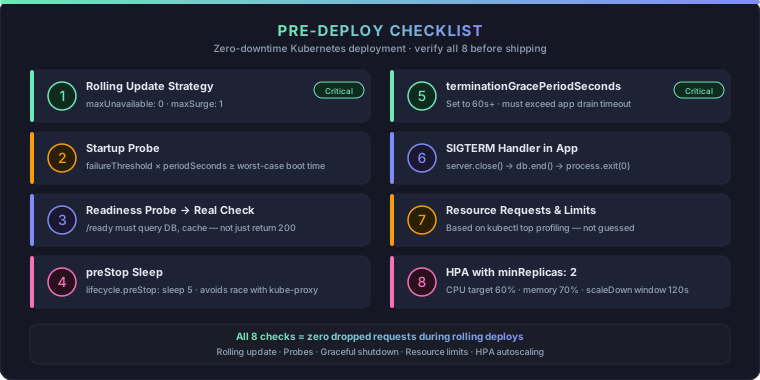
Pre-Deploy Checklist
-
maxUnavailable: 0in rolling update strategy - Startup probe configured with enough time for worst-case boot
- Readiness probe hitting a real dependency check (not just a 200)
-
preStopsleep of 5s added -
terminationGracePeriodSecondsset to at least 60s - App handles
SIGTERMand drains connections before exiting - CPU and memory requests/limits set based on profiled usage
- HPA configured with
minReplicas: 2
Tools Worth Having
- DigitalOcean Managed Kubernetes (DOKS) — Managed control plane, straightforward pricing, good starting point if you want to cut EKS/GKE costs. (affiliate link)
- Better Stack — Uptime monitoring + on-call alerting. Set monitors on
/readyso you catch issues before users do. (affiliate link) - Vultr Cloud Compute — Cheap VMs and managed K8s for full control at low cost. (affiliate link)
These settings aren’t extras — they’re the baseline for running Kubernetes in production. Copy the manifest, adjust the values for your app, and your next deploy should go unnoticed.
Got a specific failure mode you’re still seeing? Drop it in the comments.
Comments